


Description
Download Screen Capture Utility – Free, Secure, Automated Screen Capture Tool for Windows, Mac, Android, iOS
Screen Capture Utility is a powerful yet intuitive screen capture tool designed for users who need more than just basic screenshot functionality. Unlike typical screen capture apps that require manual intervention, this software stands out by enabling fully automated captures at set intervals. Whether you're monitoring employee activity, tracking changes on your desktop, or recording training sessions, Screen Capture Utility delivers reliable, scheduled screenshots with minimal effort. With its sleek interface and robust feature set, it’s ideal for both personal and professional use. The tool supports multiple operating systems including Windows, Mac, Android, and iOS, making it a versatile solution across devices. One of its standout features is the Stealth mode, which disguises the app as a generic network icon, ensuring it remains undetected during operation. This makes it perfect for discreet monitoring without alerting others. Additionally, the software allows automatic file compression, deletion of originals, and direct email delivery—streamlining the entire process from capture to reporting. For those seeking a secure, efficient, and intelligent way to document screen activity, Screen Capture Utility offers a complete package that goes beyond standard tools.
Key Features of Screen Capture Utility
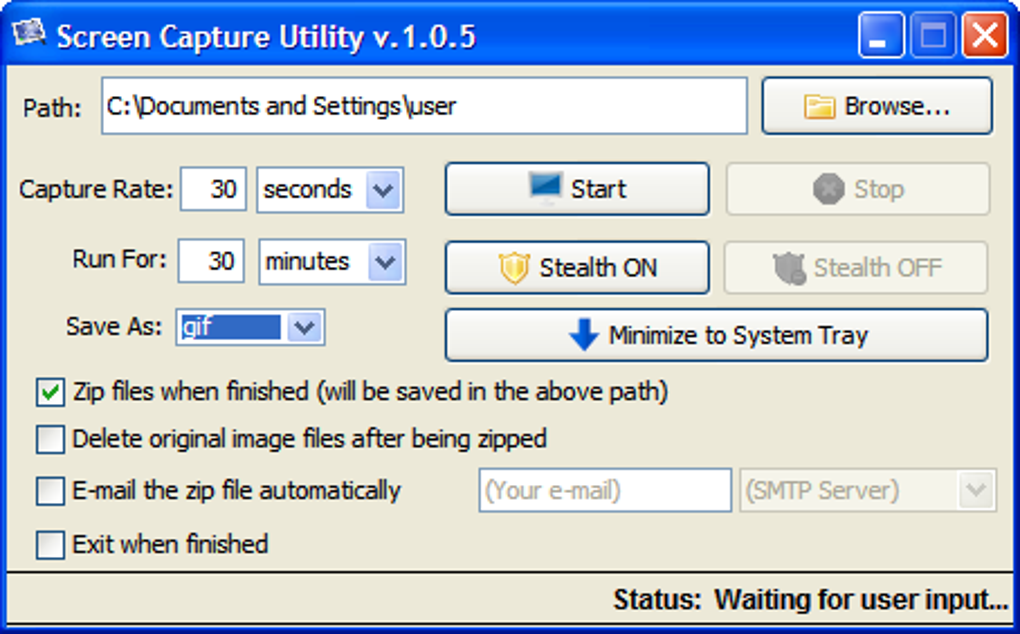
Screen Capture Utility isn’t just another screenshot app—it’s a full-featured automation tool tailored for users who value precision and discretion. The first and most compelling feature is automated screen capture scheduling. You can set the tool to take screenshots every 10 seconds, every minute, or at any interval you choose, and define the duration of the capture session. This is especially useful for long-term monitoring or tracking dynamic desktop environments.
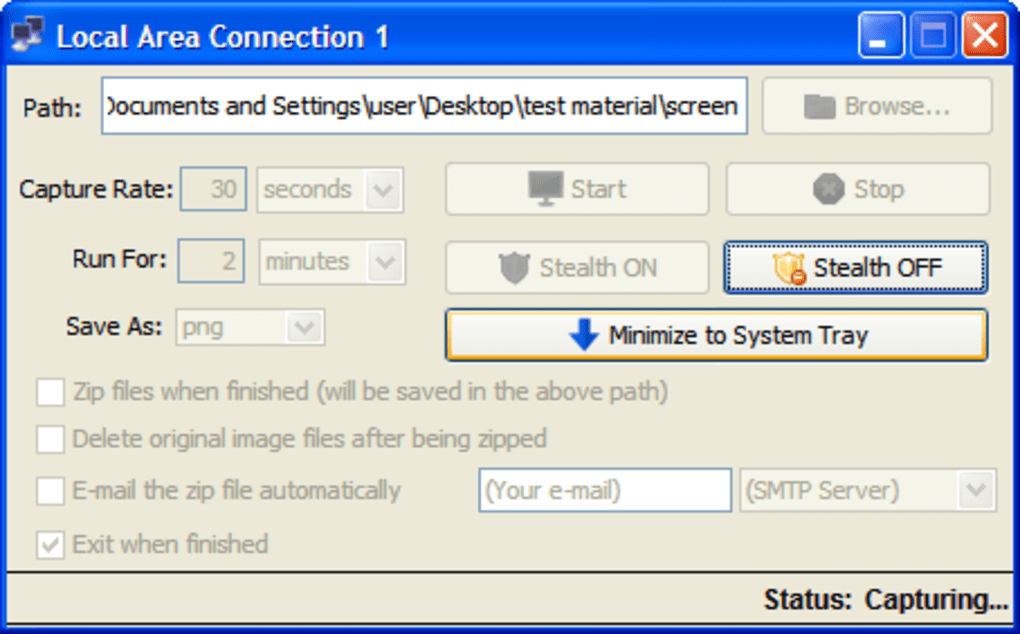
Another major advantage is the Stealth mode. When enabled, the app runs invisibly in the background, appearing only as a standard network icon in the system tray. This ensures that no one will suspect the software is running, making it ideal for monitoring unauthorized access or verifying productivity in shared workspaces.
For data management, Screen Capture Utility includes automatic file compression. Captured images are compressed into ZIP files, reducing storage space and making them easier to transfer. You can also configure the tool to delete original files after compression, maintaining privacy and freeing up disk space. Furthermore, the software supports direct email delivery—you can send the zipped screenshots to any email address with a single configuration step, eliminating the need for manual file sharing.
Additional features include customizable save locations, support for multiple file formats (PNG, JPG, BMP), and real-time preview of captured images. The interface is clean and user-friendly, allowing even non-technical users to set up complex capture routines in minutes. Whether you're a business owner, IT administrator, or educator, these tools empower you to capture and manage screen activity efficiently and securely.
How to Install and Use Screen Capture Utility
Installing Screen Capture Utility is a straightforward process, whether you're using Windows, Mac, Android, or iOS. Begin by downloading the software from the official website. The installer is lightweight and runs quickly, with minimal system resource usage. Once downloaded, run the executable file (for Windows) or the .dmg file (for Mac), and follow the on-screen prompts to complete the setup. On Android and iOS, the app is available via the Google Play Store and Apple App Store, respectively.
After installation, launch the application. The main dashboard presents a simple interface with clear options. First, navigate to the Settings tab to specify the save location for your screenshots. Choose a local folder, external drive, or cloud storage path. Next, define the capture interval—for example, every 30 seconds—and set the duration of the session (e.g., 1 hour, 24 hours, or continuous).
Enable Stealth mode if you want the app to remain undetected. Then, activate auto-compression and email delivery by entering your email address and authentication details. The software supports SMTP servers, so you can use Gmail, Outlook, or any other provider. Once configured, click “Start” to begin the automated capture process.
During operation, the app runs silently in the background. You can verify it’s active by checking the system tray (Windows/Mac) or notification center (mobile). To stop the session, simply return to the app and click “Stop.” All captured files will be saved, compressed, and emailed as configured. For advanced users, the tool also supports batch processing and scheduled tasks via command-line integration.
Compatibility and System Requirements
Screen Capture Utility is designed for broad compatibility, supporting a wide range of operating systems and devices. On desktops, it runs smoothly on Windows 7 and later, including Windows 10 and Windows 11. For Mac users, the software is compatible with macOS 10.14 (Mojave) and newer, including Apple Silicon (M1/M2) Macs. This ensures optimal performance across both Intel and modern ARM-based systems.
For mobile users, Screen Capture Utility is available on Android 8.0 and above, as well as iOS 13 and later. The mobile version offers similar automation features, though with slightly reduced customization compared to desktop versions. However, it still supports interval captures, compression, and email delivery—making it perfect for remote monitoring or on-the-go documentation.
System requirements are modest. On desktops, you’ll need at least 2 GB of RAM, 500 MB of free disk space, and a stable internet connection for email delivery. On mobile devices, the app requires minimal storage and battery usage, making it suitable for long-term background operation. The software is lightweight and does not interfere with other applications, ensuring smooth multitasking.
It’s important to note that while the tool is free to download and use, some advanced features—such as unlimited email delivery and cloud integration—may require a premium subscription. However, the free version includes all essential automation and stealth capabilities, making it a compelling choice for most users.
Pros and Cons of Screen Capture Utility
- Pros:
- Automated, scheduled screen captures with customizable intervals
- Stealth mode for undetectable operation
- Automatic file compression and deletion to save space
- Direct email delivery of zipped screenshots
- Compatible with Windows, Mac, Android, and iOS
- Lightweight, low resource usage, and easy to use
- Free to download with full core functionality
- Cons:
- Advanced features like cloud sync and unlimited email require a paid upgrade
- Mobile version has fewer customization options than desktop
- Initial setup may require basic knowledge of SMTP settings for email
- Not ideal for high-frequency captures (e.g., 1-second intervals) due to performance limits
- Privacy concerns if used without consent in shared environments
Frequently Asked Questions (FAQ)
Can I use Screen Capture Utility to monitor my employees?
Yes, Screen Capture Utility is widely used by businesses to monitor employee screen activity during work hours. Its stealth mode ensures the software remains undetected, while automated captures provide reliable evidence of usage. Always ensure compliance with local privacy laws and inform employees if required.
Is Screen Capture Utility safe and secure?
Yes, the software is secure and does not contain malware or tracking components. It runs locally on your device and only sends data if you configure email delivery. All captured files are encrypted during transfer when using secure SMTP settings.
How often can I set the screen captures to occur?
You can schedule captures as frequently as every 10 seconds or as infrequently as once every hour. The interval is fully customizable based on your monitoring needs.
Can I view captured screenshots before they’re emailed?
Yes, the software provides a preview window where you can view each captured image before it’s compressed and sent. You can also access the saved files directly from the designated folder.
Is there a free version available?
Yes, Screen Capture Utility offers a fully functional free version with all core features, including automation, stealth mode, compression, and email delivery. Premium upgrades unlock advanced features like cloud integration and unlimited email.
Conclusion: Why Screen Capture Utility Stands Out
If you're looking for a reliable, secure, and automated screen capture solution, Screen Capture Utility is an excellent choice. Its unique combination of automation, stealth, and smart file management sets it apart from standard screenshot tools. Whether you're a business owner tracking employee productivity, a parent monitoring a child’s device usage, or an educator recording training sessions, this software delivers consistent, high-quality results.
The ability to schedule captures, compress files, and send them directly via email eliminates manual effort and ensures timely reporting. With support for Windows, Mac, Android, and iOS, it’s a versatile tool that fits seamlessly into any digital workflow.
Download Screen Capture Utility today and take control of your screen monitoring needs—free, secure, and hassle-free. Start automating your captures now and enjoy peace of mind with every snapshot.
Guides & Tutorials for Screen Capture Utility
How to install Screen Capture Utility
- Click the Preview / Download button above.
- Once redirected, accept the terms and click Install.
- Wait for the Screen Capture Utility download to finish on your device.
How to use Screen Capture Utility
This software is primarily used for its core features described above. Open the app after installation to explore its capabilities.
User Reviews for Screen Capture Utility 0
No reviews found





